NYC Subway Status Board Screensaver
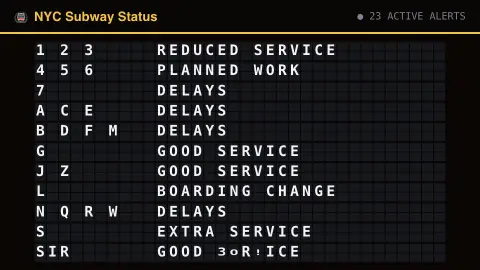
The NYC Subway Status Board screensaver shows real line-by-line service status on a Solari-style split-flap board, read straight from the MTA's public real-time alerts feed every five minutes. Lines with no active alert read GOOD SERVICE. It's free, needs an internet connection, and ESC exits.
Live preview
Press ESC to leave fullscreen. Settings are saved in your browser only.
How the NYC Subway Status Board screensaver works
Your browser fetches the MTA's GTFS-realtime subway alerts feed (key-less, CORS-enabled JSON) every five minutes.
Alerts are matched to line groups in MTA order — 1 2 3 · 4 5 6 · 7 · A C E · B D F M · G · J Z · L · N Q R W · S · SIR.
Each group shows its worst currently-active alert type; live disruptions like DELAYS always outrank planned service changes, which read PLANNED WORK.
Tiles riffle split-flap style whenever a status changes, and the header counts active alerts.
How MTA service alerts are produced
The Metropolitan Transportation Authority runs the New York City subway and publishes machine-readable data for developers. Service alerts follow the GTFS Realtime standard, first released by Google in 2011, which defines three feed types: trip updates, vehicle positions and alerts. Each alert lists the affected routes or stops, a cause, an effect and a text description.
The categories on the board reflect the effect the agency tags on an alert, such as delays, detours, reduced service or other service changes, with planned work shown separately. Planned work can stay posted for long periods, so a line reading PLANNED WORK may still run for much of the time. Delays tend to be tied to a specific incident.
Alerts are written and updated by the agency, so there can be a lag between an incident and its notice, and an alert may stay posted after trains return to normal. The split-flap display collapses the detail of each notice down to one word per line group, so it cannot show which stations are affected. For trip planning, use the official MTA channels.
A worked example
On a rough morning the board might read 1 2 3 DELAYS, L PART SUSPENDED, and nine rows of GOOD SERVICE — the same statuses the MTA is publishing at that moment, riffling into place as they change. In Multi-view it sits nicely beside a clock or weather saver.
Settings & tips
- Board width/height resize the flap grid — 11 rows fits every line group.
- Flap click sound adds the mechanical clatter (off by default).
- PLANNED WORK only shows when nothing worse is live on that line group.
Frequently asked questions
- Is this the MTA's real status?
- Yes. It reads the MTA's own real-time alerts feed — the same data behind the official service status page — and shows the worst active alert per line group.
- Do I need an API key?
- No. The MTA subway alerts feed used here is public, key-less and CORS-enabled.
- Does it work offline?
- No — it needs an internet connection to poll the MTA feed; offline it shows a short notice.
- Is it free?
- Yes — free, no download, in your browser.
- Why does a line read PLANNED WORK instead of the detail?
- Planned service changes are summarised as PLANNED WORK so live disruptions stand out. If a live alert and planned work overlap, the live alert type wins the row.
- What is GTFS Realtime?
- It is an open data standard for transit agencies to publish live updates: trip updates, vehicle positions and service alerts. It complements the static GTFS schedule format that apps use to plan routes.
- Why can a line show a problem when trains seem fine?
- An alert can cover a whole route while concerning only one station or stretch. An alert may also remain posted for a while after the situation improves.